 Callmora
AI notes & chat
As soon as a call finishes processing, Callmora writes it up into notes and opens a chat you can ask about it. The same chat can also answer across a collection or your whole history. Both the notes and the chat need an AI provider configured — there's no step that skips this, so start with picking a provider if you haven't already.
What's in your notes
Every call gets the same core sections, regardless of mode or recipe:
- TL;DR — one sentence, the single most important takeaway.
- Overview — a short paragraph of what the call was about.
- Key points — grouped by theme; this is the part a summary recipe reshapes.
- Action Items — grouped by owner, and fed into the To-Do view.
- Decisions — what the group actually agreed on, kept separate from tasks.
- Open Questions — unresolved items that need a follow-up.
- Highlights — notable moments with a timestamp; click one to jump the player there.
- Topics — a few short tags, rolled up into the Dashboard's top topics.
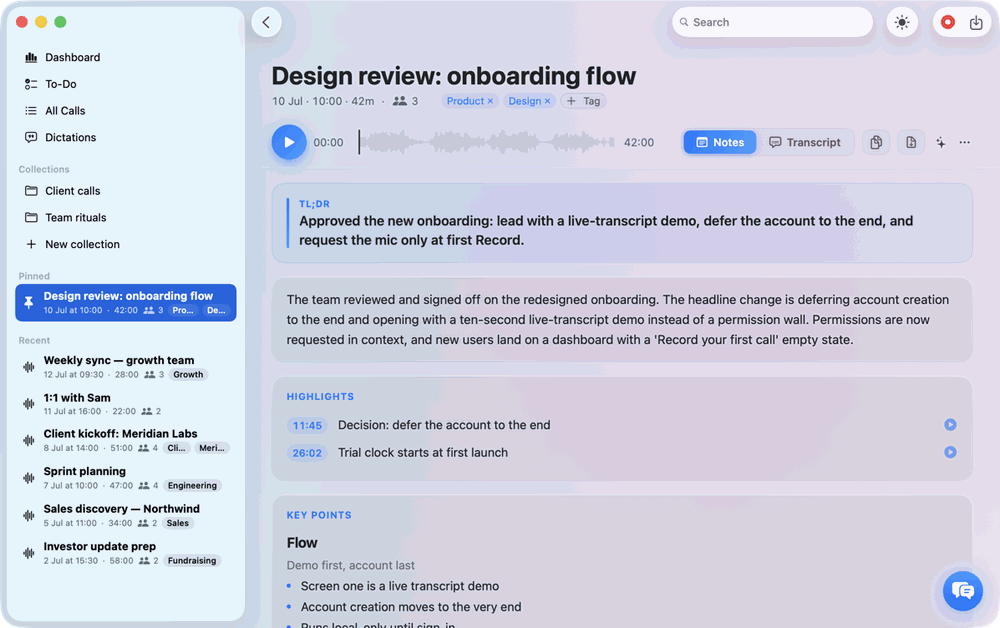
These always appear — a recipe only changes what's inside Key points, never removes or adds the sections around it.
Shape the notes with a recipe
A summary recipe controls the Key points section of the notes: which sections appear and what each one should capture. Callmora ships built-ins for 1-on-1, Sales debrief, Stand-up, Hiring interview, Tech spec / design review, and Investor update, plus Generic (plain notes, the default) and Auto, which matches the call's title against those built-ins — a title like "Weekly sales sync" resolves to Sales debrief — and falls back to Generic when nothing matches. Set your Default recipe in Settings → Summary, or pick a different one for a single call from its notes header; Callmora re-generates that call's Key points and keeps any action items you've already edited or assigned.
Notes are written in the language you choose alongside it — Settings → Summary → Language offers System, English, Ukrainian, Russian, Spanish, German, French, Portuguese, or Italian, independent of what was actually spoken.
Need a shape the built-ins don't cover? Create a custom recipe →
Pick an AI provider
Summaries and chat share one provider setting, separate from your transcription engine — set it in Settings → Summary:
OpenAI, Gemini, or Claude
Paste your own key and Callmora calls that provider directly. Get a key from platform.openai.com/api-keys, aistudio.google.com/app/apikey, or console.anthropic.com/settings/keys.
AssemblyAI LLM Gateway
Reuses your AssemblyAI transcription key by default (you can set a different one). This is a paid AssemblyAI tier — the free transcription plan doesn't include gateway access. Manage keys at assemblyai.com/dashboard/api-keys.
Custom endpoint
Point Callmora at any OpenAI-compatible server — Ollama, vLLM, LM Studio, LiteLLM — with a Base URL and a model name; the API key is optional for a local server. A Test connection button confirms Callmora can reach it and see the model.
There's no bundled on-device summarizer
Unlike local transcription, Callmora doesn't ship a built-in model for notes or chat — one of the providers above always has to answer, over the network, with your key. The one way to keep a summary entirely on your Mac is the Custom endpoint pointed at a server you run yourself (Ollama on localhost is the common case): Callmora recognizes a loopback address and the chat panel then tells you the call "stays on your Mac" — but that's your own local model, not something Callmora includes.
Keys are stored in the macOS Keychain, never on a Callmora server. See Security & sync for the full picture of what leaves your Mac in cloud mode.
Ask about one call
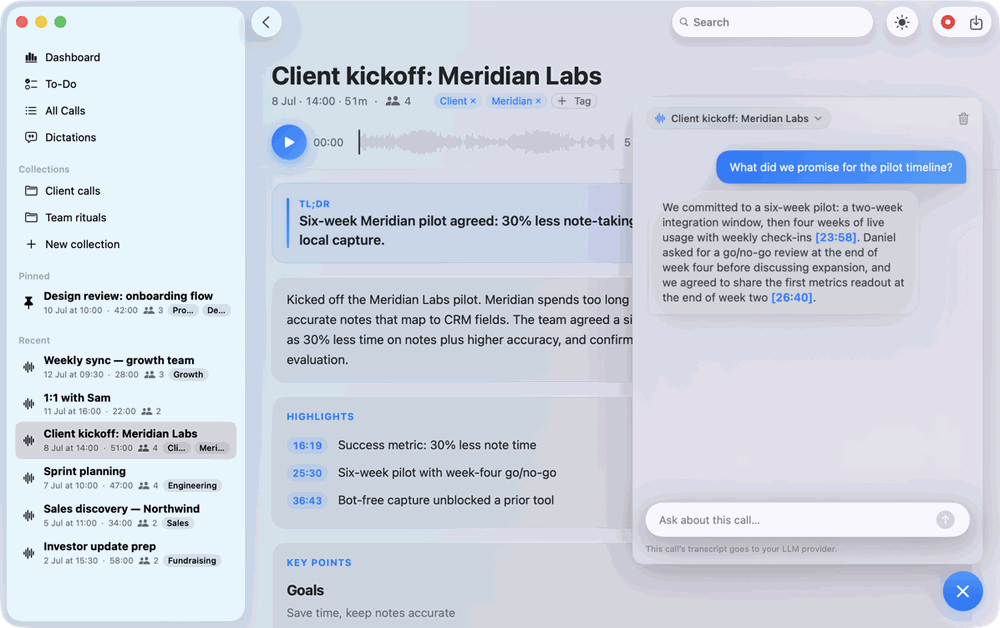
A floating chat button in the bottom-right of the main window opens a panel scoped to whatever you're looking at. Over a single call it answers using only that call's transcript and notes — ask "what did we agree on?" or "what were the objections?" and get a grounded reply, with clickable [mm:ss] citations that seek the player to the moment it was said. Answers stream in as they're written.
Ask across your calls
Switch the panel's scope chip to a Collection or to All calls and the same chat widens out — "what did we tell Meridian about pricing?" pulls a cited answer from whichever calls matter, each citation naming its call so you can jump straight to it. For a couple of pointed questions Callmora pulls in the full transcripts of the most relevant few calls; for a broad roll-up across many, it works from their notes instead. Either way, the panel discloses how many calls were in scope for that answer.