 Callmora
Speakers & voices
Callmora works out who's talking on its own, labels them, and lets you rename them once. Turn on voice memory and it will recognize the same people again in your next call.
Automatic speaker separation
Every call is split by speaker without you doing anything. How it happens depends on your transcription mode:
- Local mode separates speakers on your Mac, on-device.
- Cloud mode diarizes through AssemblyAI instead, and supports up to 20 speakers on a single call.
In a live recording with your microphone on, your own track is labeled Me and kept separate from everyone else, who arrive as Speaker 1, Speaker 2, and so on. If you record system audio only — no microphone — there's no "Me" track: every voice, including your own if you're in the room, gets a generic Speaker label instead.
Renaming a speaker
Once a call finishes processing, a default label like Speaker 2 can be replaced with a real name, and the new name applies everywhere at once — the transcript, the notes' action items, and every export. There are three ways to do it:
- The "Rename speakers" sheet. Click the speaker-count badge in the call's header to open a list of every distinct speaker with an editable field each; click Save to apply them all together.
- Inline, in the transcript. Click any speaker's name directly above their lines to edit it in place.
- From an action item's assignee. Renaming an owner in the To-Do view renames that speaker everywhere too.
All three edits are blocked while a call is still processing — the tooltip explains why, and the same name field turns editable the moment processing lands.
Fixing a wrong speaker count
If Callmora hears two people as one, or splits one person into two, correct the count directly:
- Hover the speaker badge in the call's header and click the pencil that appears next to it.
- In the Number of speakers popover, set the right count with the stepper (1 to 12) and click Save.
- Confirm Reprocess in the dialog that follows.
What reprocessing changes
Correcting the count rebuilds the transcript and regenerates the AI summary from scratch with the new split — your own written notes are kept, but any speakers you'd already renamed revert to Speaker 1, Speaker 2, and so on, so rename again afterward. In cloud mode this re-runs cloud transcription and may use your AssemblyAI quota; in local mode it re-runs on your Mac.
This control needs the call's saved audio, so it's only available when Keep call audio for playback was on when you recorded (the default). A call recorded with that off can't have its speaker count corrected.
Voice memory
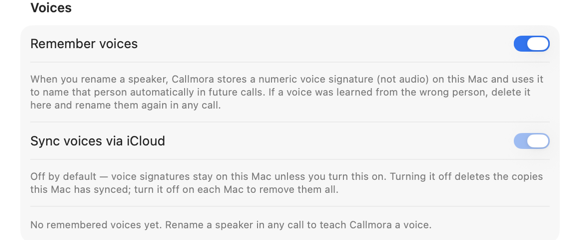
Rename a speaker once with voice memory on, and Callmora remembers that person's voice — a numeric signature, never a recording — and names them automatically the next time they're on a call, whether the call is local or cloud, live or imported. A less certain match shows up as a "Sounds like name — apply" suggestion instead of an automatic label. It never touches Me, and it never overwrites a name you've already set. Everything it remembers lives in Settings → General → Voices, where you can search the list, delete one voice, or forget them all. Read the full voice memory guide →
Sync voices via iCloud
Voice signatures stay on this Mac by default. Turn on Sync voices via iCloud in Settings → General → Voices to mirror them to your own private iCloud account so your other Macs recognize the same people — it needs an iCloud account and the main iCloud sync toggle on first. Turning it back off deletes the copies this Mac has synced (your local voices are untouched); to remove every remote copy, turn it off on each Mac.