 Callmora
Organize & search
Tags, pins, and Collections keep a growing call library navigable; the toolbar search and a date filter narrow it down fast; and the Dashboard and To-Do view surface what needs attention without opening a single call.
Tags
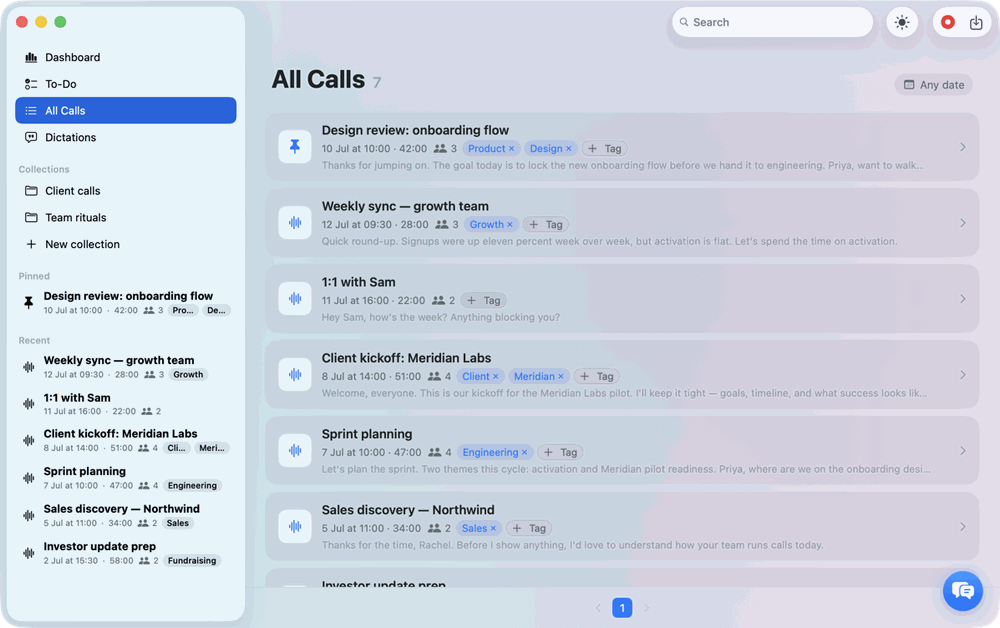
Any call can carry any number of tags. In the All Calls list, click the small Tag button (a plus icon) in a call's meta line, type a name, and press Return; each tag becomes a chip with an × to remove it. Tags show on every row next to the date, duration, and speaker count, and double as a matching condition for Collections (below) — a client name, "sales," "1:1" pays off across the app.
Pinning
Right-click any call and choose Pin to keep it at the top of your library regardless of when it happened. Pinned calls get their own Pinned section in the sidebar and on the Dashboard, and always sort ahead of everything else in All Calls. Choose Unpin from the same context menu when you're done with it.
Collections
A Collection is a named, reusable group of calls — a client, a project, a recurring meeting series. Click New collection at the bottom of the sidebar's Collections section, then rename it by editing the title at the top of its page. Past six collections, the sidebar collapses the rest behind a Show all (N) toggle.
- Manually — click Add calls, search by title, and click the + next to each call you want. Remove a member from its row's hover button, or its context menu's Remove from collection.
- Automatically — click Rule (or Rules, once you have one) to open Auto-include rules: "Any call matching one of these rules joins the collection automatically." Conditions are Tag is, Title contains, or Speaker name contains — a match, present or future, joins on its own.
Manual adds and removes always win over the rules for that one call, without rewriting the rules themselves.
A large member list loads 50 at a time — click Show more for older ones. Deleting a collection (sidebar context menu) removes the grouping only; the calls stay in your library. Every collection also gets its own scoped AI chat — see AI notes & chat to ask questions across a whole collection at once.
Filtering and search
The Search field in the main window's toolbar searches live across call titles, tags, your notes, the transcript text, speaker names, and the AI summary. Start typing anywhere in the app and Callmora jumps you to All Calls, filtered as you type.
All Calls also has its own date-range filter: the pill next to the title (Any date when off) opens presets — Today, 7 days, 30 days, Month, Year — or a calendar for a custom range; Clear removes it. Results page 20 calls at a time, with pinned calls always sorted first.
This is plain filtering over your own library. For a conversational, cited answer pulled from many calls at once, see AI notes & chat.
Dashboard
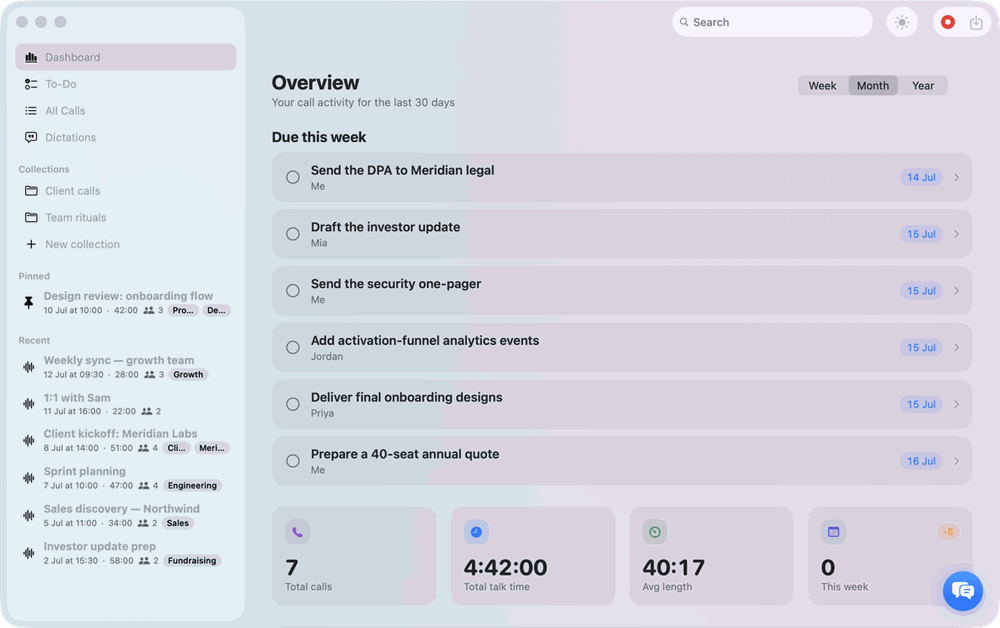
The Dashboard opens on Overview. A period switch — Week, Month, Year — drives four metrics, each with a trend badge against the prior period: Total calls, Total recorded (wall-clock time, silences included), Avg length, and This week.
- Talk time — minutes recorded per day (per month, on Year).
- Talk balance — a donut splitting the period between you and everyone else, from diarized segments; most reliable on calls you recorded live rather than imported.
- Top topics — the five topics recurring most across the period, pulled from each call's AI summary. A call with no summary (no LLM provider configured — see AI notes & chat) contributes nothing here.
- Due this week — open to-dos due in the current week, checkable right from the card.
- Pinned and Recent calls, with a See all link into All Calls.
Empty blocks hide themselves rather than display zeros.
To-Do
The To-Do view collects every action item you've promoted from a call, plus any task added directly with the + button (it creates "New task," assigned to "Me"). A segmented control switches between Open and Done; an assignee filter — Everyone by default — narrows the list to one person.
Each row is editable in place: check it off, edit the text or assignee pill directly, and click the date area for a deadline (Clear / Today). The overflow menu offers Open call and Remove from To-Do — removing a call-linked task just takes it off this list (the action item stays on the call, promotable again); a task added here is deleted outright.
See AI notes & chat for where action items and their assignees come from.