 Callmora
Dictation
Dictation turns Callmora into a push-to-talk keyboard, anywhere in macOS. Press a global hotkey, speak, press it again, and the words are transcribed and pasted right where your cursor is — in Mail, Messages, a terminal, wherever you were typing. It's separate from call recording: no meeting is created.
What it is
Press the dictation shortcut and a small floating pill appears near the bottom of your screen (you can drag it anywhere). Speak, then press the shortcut again — or click Stop on the pill — to finish. Callmora transcribes what you said and delivers it as text: pasted automatically into whatever app had focus when you started, and always copied to the clipboard as a backup.
Turn it on and set the hotkey
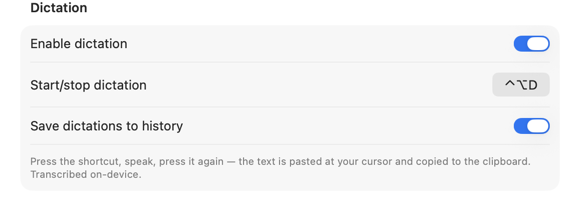
Dictation is on by default. To change it, open Callmora's Settings → General and find the Dictation section:
- Toggle Enable dictation on or off.
- Next to Start/stop dictation, click the button showing the current combination (⌃⌥D — Control-Option-D — by default). It changes to "Press a key combo…"; press the new shortcut you want, or Escape to cancel. It has to include ⌘, ⌥, or ⌃ — a bare letter is rejected so dictation can't steal an ordinary key from every other app.
- If the combination is already used by Callmora's call-recording shortcut, the field shows "Already used by another shortcut" and keeps listening — pick a different combination.
Turn Save dictations to history off if you'd rather Callmora never keep a copy of what you dictate — it's on by default.
How to dictate
The pill walks through the same steps every time:
- Recording. A timer and a live mic-level meter confirm Callmora is hearing you. Press the hotkey again, or click Stop, when done. The ✕ cancels and discards the recording instead.
- Preparing model… / Transcribing… A brief step if the local model isn't warmed up yet, then the actual transcription. You can still cancel here.
- Delivered. If the app you dictated into is still in front, the text is pasted and the pill reads "Saved to history" with a 4-second Undo (when history is on). Switch apps while Callmora is transcribing and it plays it safe instead: the text lands only on the clipboard, with "Copied — the app you dictated into changed. Press ⌘V where you want it."
Automatic pasting needs Accessibility permission (macOS prompts for it on your first dictation). Without it, Callmora still copies the text — the pill just says "Copied — press ⌘V". Either way, nothing is lost.
Dead air or a very short recording ends in "Nothing recognized" — nothing pasted or saved. A failed transcription shows a persistent error ("Model isn't downloaded — check your connection", or "Transcription failed") with Retry and ✕; your audio is kept until you retry or dismiss it.
Which engine transcribes it
Dictation always transcribes on your Mac — regardless of whether your calls are set to Local or Cloud mode. Nothing you dictate is ever sent to AssemblyAI or any other server.
Which on-device engine it uses:
- In Local mode, dictation follows the engine and model you picked for calls in Settings → Transcription (Parakeet or Whisper).
- In Cloud mode, a Dictation engine picker appears right in the Dictation section of Settings → General — same choice of Parakeet (the default) or a Whisper model. The first dictation downloads the model if it isn't on this Mac yet.
Saved dictations
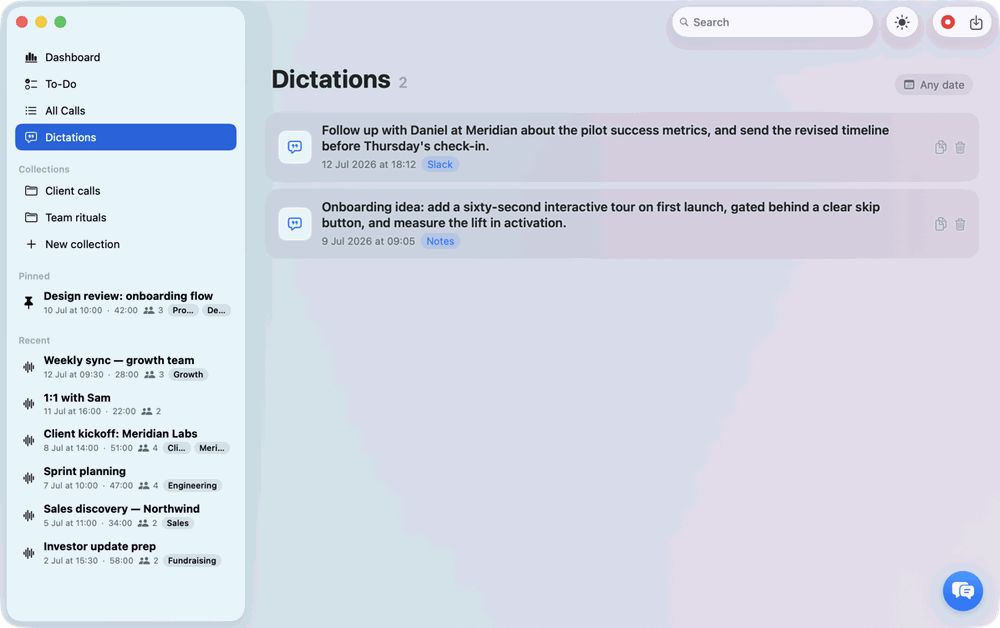
When Save dictations to history is on, every delivered dictation is added to a Dictations list in the main window's sidebar, alongside Dashboard, To-Do, and All Calls. Each row shows the text, the date, and the app you dictated into, with Copy and Delete on hover. It's recovery, not an editor — there's nothing to rename or re-tag.
Saved dictations follow the same optional at-rest encryption as your calls and notes, and the same iCloud sync toggle — see Security & sync. Erase all data removes them along with everything else.
Good uses
Anywhere typing is slower than talking: a quick Slack or Messages reply, an email you'd rather not type one-handed, a note or a to-do you want down before you forget it, a comment in code, a search box. Dictation doesn't care what app is focused — if it accepts pasted text, it works there.
Good to know
- One microphone at a time. You can't start a dictation while a call is actively recording, and starting a call recording while a dictation is transcribing waits for it to finish.
- Needs Microphone access. The same permission call recording uses; Callmora asks before your first dictation if it hasn't already.
- Part of your license. Dictation works during your 14-day trial and with an activated license, same as the rest of Callmora — see Licensing & trial.