 Callmora
Security & sync
Callmora has no accounts and no Callmora servers. Everything it records stays on your Mac by default, and the only things that ever leave it are the pieces you explicitly choose to send — to a transcription or AI provider you've configured with your own key, or to your own private iCloud.
Where your data lives
In Local mode, recording, transcription, speaker separation, and summaries all run on your Mac; nothing about the call leaves the device. In Cloud mode, Callmora sends the audio to AssemblyAI for transcription and the transcript to whichever provider you've set up for summaries and chat — OpenAI, Gemini, Claude, AssemblyAI's LLM Gateway, or a custom endpoint — using your own API key, never a Callmora account. Keys live in the macOS Keychain. See Transcription and AI notes & chat for how each provider works. Callmora collects no analytics and runs no telemetry.
Encryption at rest
Encryption is optional and off by default. Off, transcripts, notes, and recordings are plain files on this Mac, readable by anyone with access to your account. On, that same data is encrypted at rest. Turn it on in Settings → General → Privacy & Security with the Encrypt local data toggle:
- Create a master password. Callmora can't reset it — lose it and your recovery key, and that data can't be recovered by Callmora or by Apple.
- Save the recovery key shown once. It's the way back in if you forget your password, or the way to unlock on a second Mac.
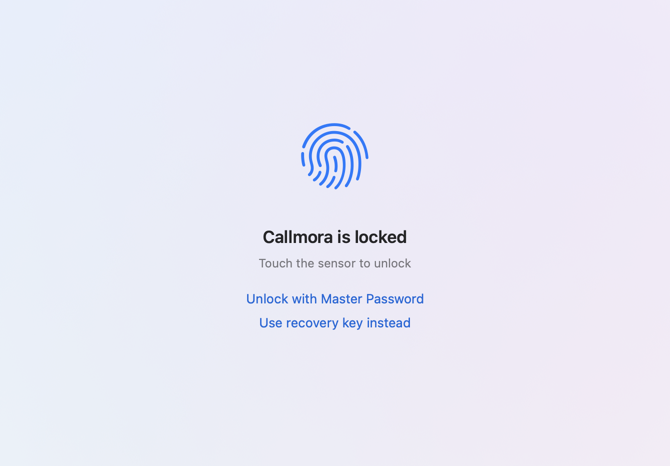
- Optionally enable Touch ID to unlock with a fingerprint instead.
Callmora then runs an encrypt pass over your existing library, with a progress bar. You can generate a new recovery key or change the master password any time afterward without re-encrypting anything.
The recovery key is not optional to keep
It's shown exactly once — at setup, or when you regenerate it. Lose it along with your master password and that Mac's encrypted calls are unrecoverable. Write it down somewhere durable, not a screenshot on the same Mac.
Encryption is permanent
Turning encryption on is a one-way door: there is no way to decrypt the library back to plain files later. If you ever want to stop using encryption, export what you need (Markdown, audio) and use Erase All Data to start a fresh library. One password, one key, no half-states.
Using more than one Mac? The first Mac creates the key; every other Mac joins the same key — Callmora asks for that library's master password instead of creating a new one, so all your Macs open the same calls.
App lock
With encryption on, Callmora locks itself after you've been away from it, in the same Lock after picker: 1 minute, 5 minutes, 15 minutes, 1 hour, or Never (default 5 minutes). The clock measures time away from Callmora specifically, not the whole Mac.
What "Never" does — and doesn't
Never turns off only that idle timer: Callmora stays unlocked indefinitely while you're actively at your Mac. It does not turn off locking altogether. Locking your Mac's screen, letting it sleep, or using Callmora's own lock command (menu-bar panel, Dock menu, or ⌘L) still locks the vault immediately, every time — those are you saying so directly, not the idle guess. Never only means Callmora won't lock itself on a timer while you're around.
Locking never stops a recording. If the vault locks mid-call, capture keeps running in the background, and the lock screen shows a live Recording — mm:ss banner so you can see it's still going. That call's notes and transcript simply wait behind the lock until you unlock again.
Erase All Data
Settings → About → Erase All Data… permanently deletes every call, transcript, note, and saved recording on this Mac. It refuses while a recording or dictation is live. If iCloud sync is on, it also purges your synced copies — retried at the next launch until iCloud confirms, with sync paused meanwhile. There's no undo.
iCloud sync
Sync is opt-in, off by default, and runs device-to-device through your own private iCloud account — never a Callmora server. Three separate switches, all under Settings → General:
- Sync to iCloud — the master switch, in the iCloud section: your calls, notes, and history across Macs.
- Also sync audio recordings — nested under the master switch: the saved audio itself, heavier and counted toward your iCloud storage, so it's a separate opt-in.
- Sync voices via iCloud — in the Voices section, alongside Remember voices: the numeric voice signatures Callmora learns from a named speaker — never audio — so a voice recognized on one Mac is recognized on your others. See Speakers & voices and how voice memory works.
Each needs you signed in to iCloud and can be turned off independently. Turning off voice sync deletes that Mac's copies from iCloud; the profiles themselves stay on the Mac that learned them.
For the full policy, see Privacy.